Tenant administrators can align a WoodsPortal implementation with their organization by configuring portal imagery, accessible labels, login-page copy, and an optional sidebar call to action.
Before you begin
- Open the intended HubSpot CMS page and select the WoodsPortal module in the page editor.
- Prepare a square portal icon and separate logo assets for light and dark backgrounds.
- Prepare concise alternative text that identifies the organization or portal without repeating decorative wording.
- Use a safe test portal or a controlled rollout window for visible brand changes.
Configure portal imagery
- In the module editor, expand Branding.
- Upload or replace the portal icon.
- Add the logo intended for light backgrounds and the logo intended for dark backgrounds.
- Enter meaningful alternative text for each informative logo.
- Use automatic sizing unless your brand assets require custom dimensions. If you use custom sizing, test desktop and narrow-screen layouts.
- Select Apply changes, then refresh the customer portal before evaluating the result.
Customize the login welcome message
- In the Branding section, configure Welcome Message for the signed-out portal experience.
- Add a short welcome message that tells users which customer, partner, dealer, or vendor portal they are entering.
- Avoid internal implementation language and instructions that only administrators understand.
- Select Apply changes, then review the signed-out login experience.
Configure the sidebar call to action
- Enable the sidebar call to action when portal users need a consistent next step.
- Enter a short title, button label, and destination URL.
- Use a destination that the intended portal audience is allowed to open.
- Test the button from the customer portal and confirm whether it opens in the expected browser context.
Quality checks
- Confirm that logos remain legible on light and dark backgrounds.
- Confirm that alternative text is useful to screen-reader users.
- Review the login page and sidebar on desktop and mobile-width screens.
- Check that the welcome message and call to action use customer-facing language.
- If an older image remains visible, refresh the page and check that the change was saved to the intended portal.
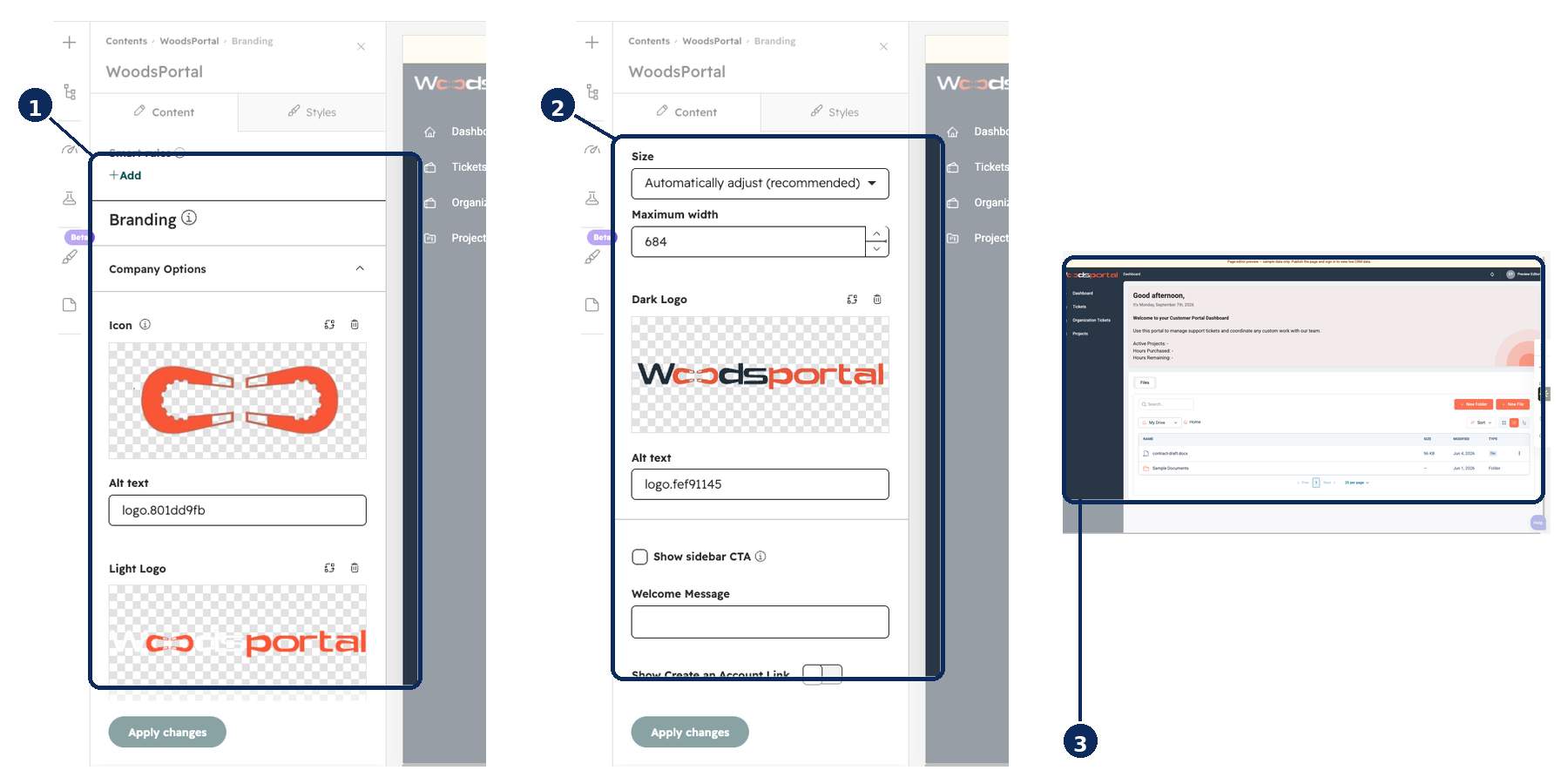
Figure: Configure the icon, light and dark logos, accessible labels, welcome message, and sidebar options in the HubSpot CMS module editor.