Authorized portal users can view, create, and update notes on HubSpot records, including notes with supported images or file attachments.
Add a note
- Open an authorized CRM record in the customer portal.
- Open the Notes section.
- Select the action to add a note.
- Enter the note content.
- Add an image or file attachment when needed and permitted.
- Save the note.
- Confirm that the note appears in the portal history and the corresponding HubSpot record activity.
Permissions
- Viewing notes requires access to the record and the relevant note permission.
- Creating or updating a note requires note write permission.
- Adding an attachment also requires the relevant file access.
Troubleshooting
- If the Notes section is missing, confirm the record layout and permissions.
- If an attachment fails, review file permissions, file limits, and upload status.
- Use the displayed timestamps and pagination controls to find older activity.
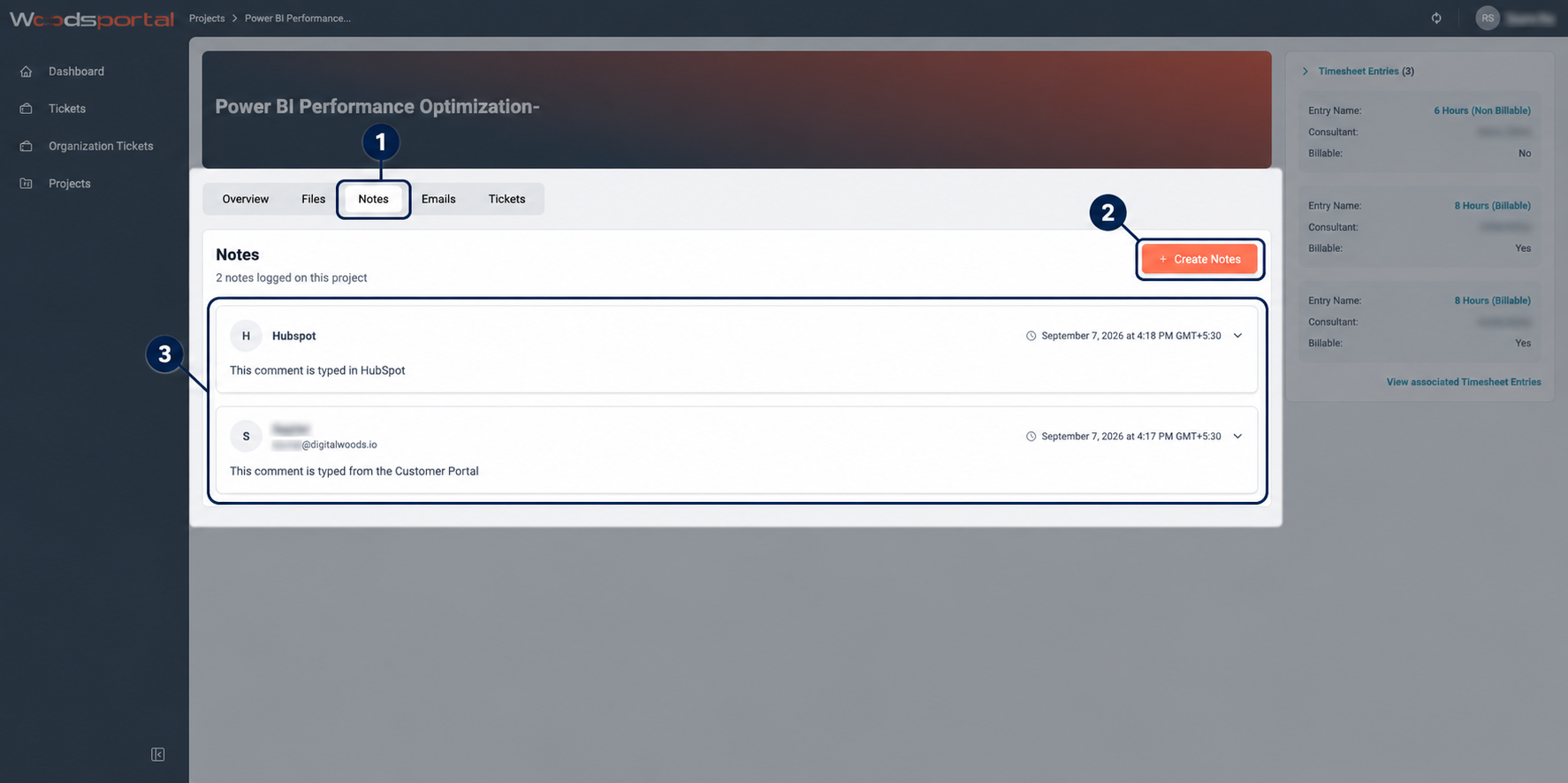
Figure: Two-way notes shared between the customer portal and the corresponding HubSpot record.