Administrators can build a useful landing experience by enabling dashboard cards, choosing their layout, and presenting customer-relevant text, CRM values, dates, and links.
Plan the dashboard
- Decide which information should help a portal user take the next action after signing in.
- Use cards for concise summaries, status information, instructions, or links. Put detailed workflows on dedicated portal pages.
- Confirm that any CRM property used in a card is appropriate for the intended audience.
Create and arrange dashboard cards
- Open the intended HubSpot CMS page, select the WoodsPortal module, and expand Dashboard.
- Enable the cards that should appear on the portal dashboard.
- Choose Grid or List based on the amount of content and the expected screen size.
- Arrange the cards in the order portal users should read them.
- Select Apply changes after each meaningful change.
Add customer-relevant content
- Use rich text for headings, short instructions, and explanatory copy.
- Insert supported contact or primary-company property tokens when a value should be personalized for the signed-in user.
- Insert the current date only where the date provides useful context.
- Present supported property values as text, a button, or a link according to the action the user should take.
- When a link action is configured, choose whether it should open in a new tab or an embedded frame only after testing the destination.
Test the customer experience
- Open the customer portal with a representative test user.
- Confirm that every personalized value comes from the intended contact or company record.
- Confirm that cards do not expose properties the user is not permitted to see.
- Test buttons and links, including destinations opened in a new tab or embedded frame.
- Check the card order and readability at desktop and mobile-width screen sizes.
Troubleshooting
- If a token is blank, confirm that the source property has a value on the test contact or primary company.
- If a link will not open in an embedded frame, use a normal link or new-tab action because some websites block embedding.
- If a card is missing, confirm that it is enabled, saved, and assigned to the selected portal.
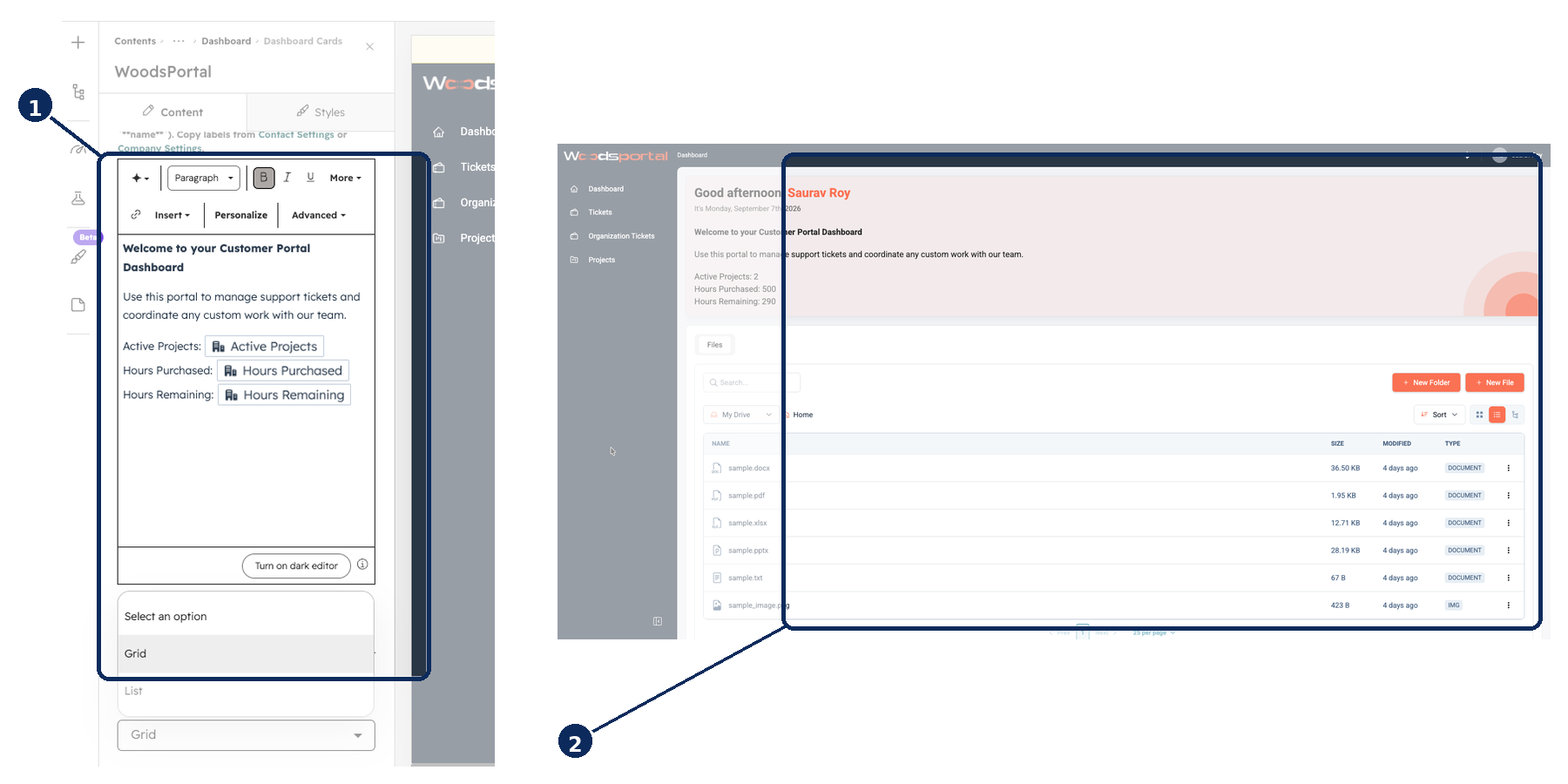
Figure: Configure dashboard content, personalization tokens, and Grid or List view in the HubSpot CMS module editor, then verify the customer dashboard.