WoodsPortal can publish supported activity to HubSpot timelines and expose WoodsPortal actions in HubSpot workflows.
Review a timeline event
- Open a HubSpot record with WoodsPortal activity.
- Open the activity timeline.
- Filter or locate the WoodsPortal event.
- Review the event context shown on the record.
- Use the linked record or resource context only when the event provides it.
Add a WoodsPortal workflow action
- Open the relevant HubSpot workflow.
- Add an action.
- Choose a WoodsPortal action that is currently published for the connected app.
- Complete only the configuration fields shown by HubSpot.
- Review enrollment, permissions, and test-record impact.
- Test the workflow with a safe record before activating it broadly.
Available events and actions
- Supported timeline events include: Email Log, File Downloaded, File Uploaded, File Viewed, Folder Created, Login, Logout, Note Created, Record Created, Record Updated, and Record Viewed.
- Available workflow actions include: Sync Contact Access Abilities, Copy Resource, Sync New Contact to WoodsPortal, and Create Folder. Action-specific behavior and limits still depend on the installed app version.
- Available event properties include the following fields:
- Email Log: Body HTML, Body Text, Date and Time, Email Address, Email ID, First Name, Identifier Email, Last Name, Object Name, Portal Name, Record ID, and Record Link.
- File Downloaded, File Uploaded, and File Viewed: Date and Time, Email Address, File ID, File Manager Link, File Name, Identifier Email, Object Name, Object Type ID, Portal Name, Record ID, and Record Link.
- Folder Created: Date and Time, Email Address, File Manager Link, Folder ID, Folder Name, Identifier Email, Object Name, Object Type ID, Portal Name, Record ID, and Record Link.
- Login and Logout: Date and Time, Email Address, First Name, Identifier Email, Last Name, and Portal Name.
- Note Created: Body HTML, Body Text, Date and Time, Email Address, Identifier Email, Note ID, Object Name, Object Type ID, Portal Name, Record ID, and Record Link.
- Record Created and Record Viewed: Date and Time, Email Address, Identifier Email, Object Name, Object Type ID, Portal Name, Record ID, and Record Link.
- Record Updated is included among the supported timeline events. Check the event configuration in your connected HubSpot account for available fields.
- Workflow execution depends on the app installation, authorization, configuration, and the action’s own requirements.
Troubleshooting
- If an event is absent, confirm that the relevant WoodsPortal activity occurred and that the app event is available for the record.
- If a workflow action is missing, confirm the installed app version and connected account.
- If a test fails, review the workflow history and WoodsPortal job or operational result before enabling the workflow.
Access-related workflow actions
- The verified app version exposes actions named Sync New Contact to WoodsPortal and Sync Contact Access Abilities.
- Use only the actions currently visible in the connected HubSpot account because names and availability can depend on the installed app version.
- Before enrollment, confirm the Woods Portal Access value and Primary Company relationship when that access model is used.
- Test access changes with a safe contact and review the workflow history before enabling broad enrollment.
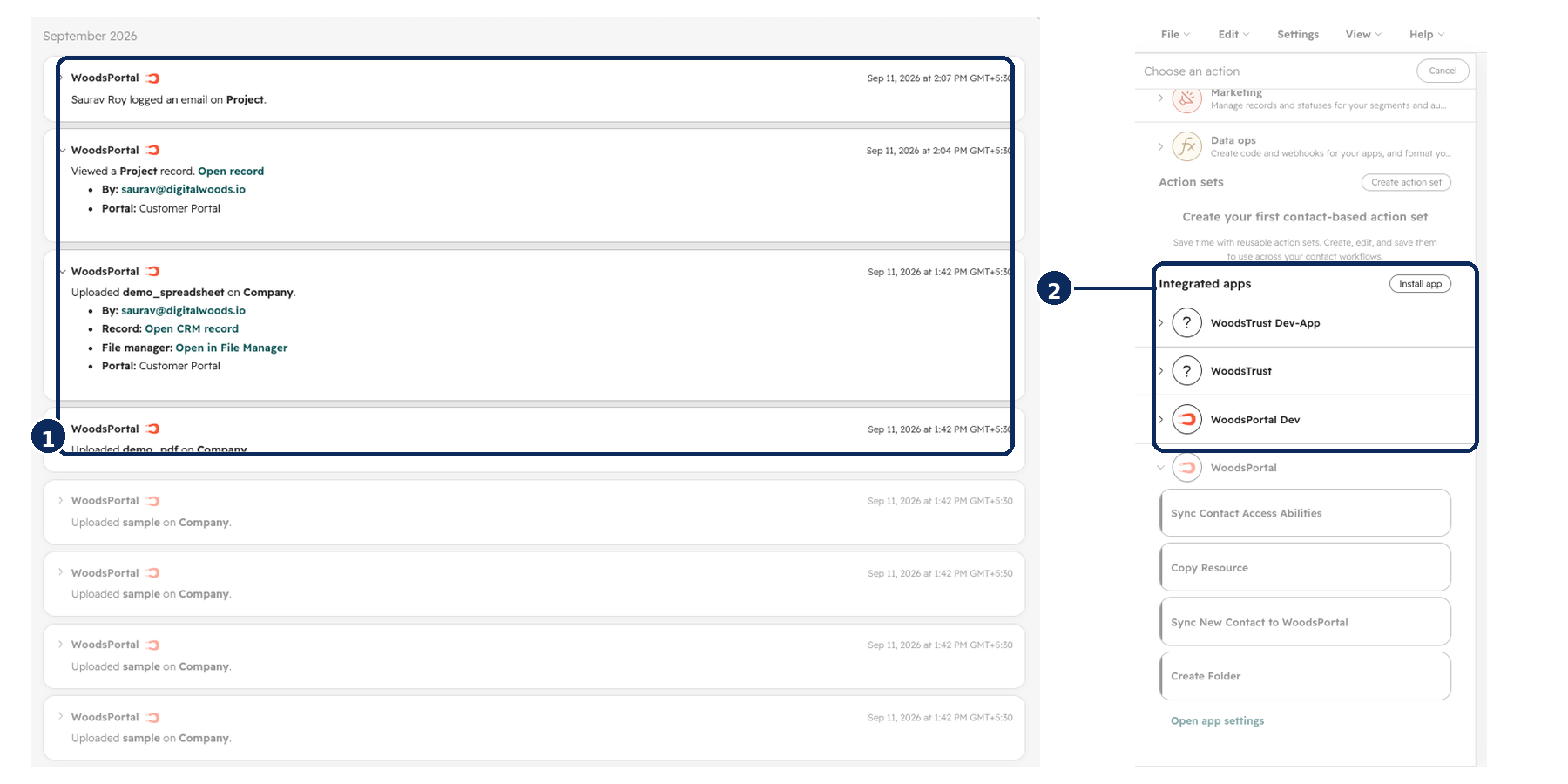
Figure: Review WoodsPortal events on a HubSpot record and choose from the verified WoodsPortal workflow actions.
Configure the contact-sync fields
The Sync New Contact to WoodsPortal action provides Target record and Portal ID fields. The example uses Enrolled contact and Portal ID 366; replace 366 with your intended portal ID. Sync Contact Access Abilities also provides a Portal ID field. Confirm which fields are required in your installed app version before saving.
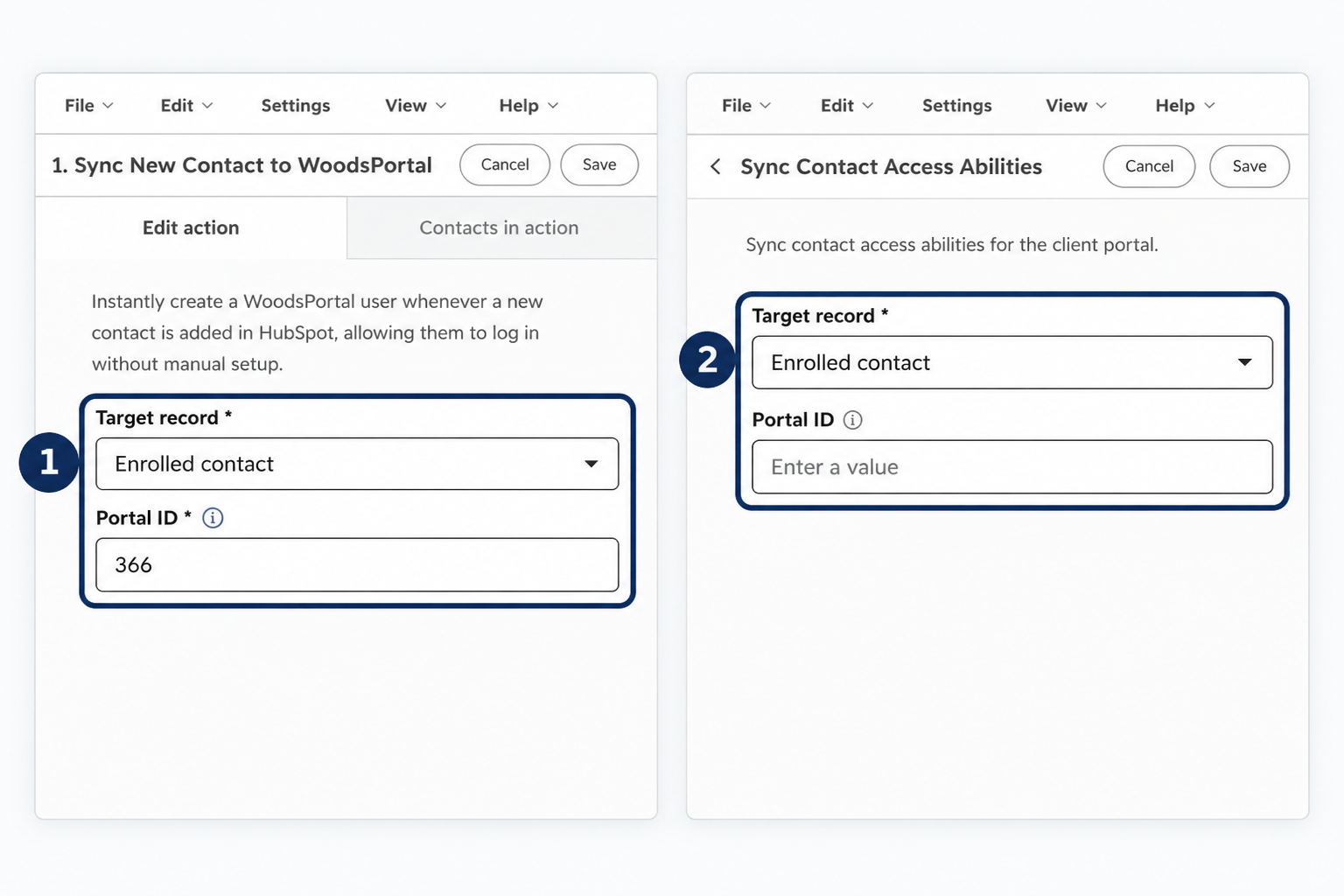
Figure: Target record and Portal ID settings in Sync New Contact to WoodsPortal (1) and Sync Contact Access Abilities (2).