The WoodsPortal HubSpot app uses OAuth and supported CRM extensions to connect HubSpot records with WoodsPortal file and customer-management experiences.
Install the app
- Start the WoodsPortal installation from the approved HubSpot Marketplace flow.
- Select the HubSpot account to connect.
- Review the requested OAuth scopes.
- Authorize the app with a HubSpot administrator who has the required access.
- Continue to https://app.woodsportal.com and confirm that the connected hub is available.
Use the File Manager CRM card
- Open a supported HubSpot contact or company record.
- Locate the WoodsPortal File Manager card or tab.
- Open the file-management experience.
- Use My Drive or Shared Drive as needed. The verified card includes More actions for Sync with WoodsPortal and Open in HubSpot Files, plus file actions Open, Open in HubSpot, and Delete. Availability depends on the HubSpot user and connected record.
Use the Customer Management CRM card
- Open the WoodsPortal customer-management card when it is available on a supported record.
- Review only the customer context and actions shown by the current production card.
- The verified Customer Manager card shows verification and active status, portal access, portal URL, and assigned roles. Its Manage menu includes Copy sign-in link and Add / remove access. A separate dialog supports assigning an existing WoodsPortal role. Availability still depends on the connected record and installed app version.
Troubleshooting
- If a card is absent, confirm the app installation, scopes, supported record type, and extension placement.
- If the embedded experience cannot load, confirm the connected HubSpot account and WoodsPortal access.
- Do not describe an app host other than https://app.woodsportal.com as a production application.
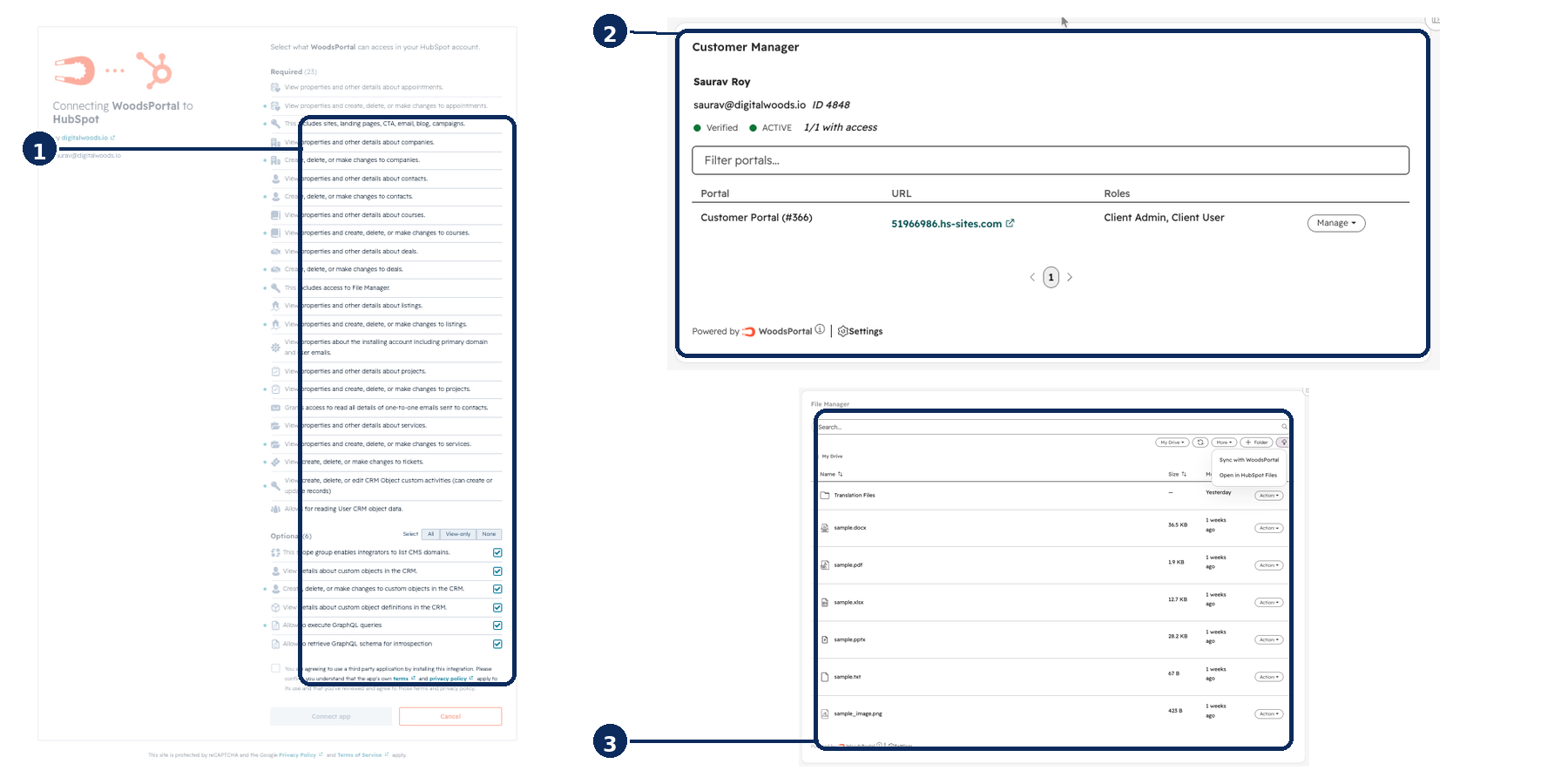
Figure: Authorize WoodsPortal in HubSpot, review a customer’s portal access, and use the File Manager CRM card.